 Basic Tutorial
In this tutorial we are going to extract some results from a search engine.
 button.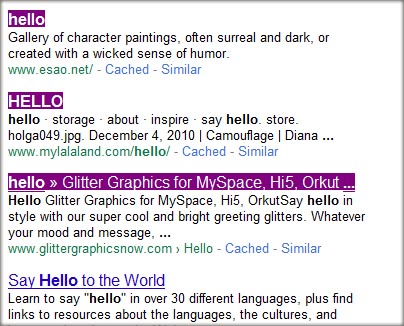
 tab is selected on the left panel, and click on the Create kind from selection
  button and name it "titles". The list of properties and values you see on the left is the list of properties that the elements you selected have in common. If you click on the Select Kind in Browser
  button, all the elements in the current page that have those properties will be selected.
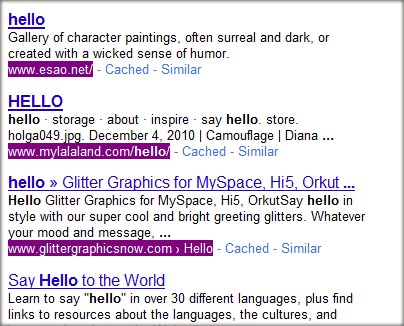
Repeat step 3 but this time name the kind "urls".
Now select the "Next" link on the web page (the one that you would usually click to go to the next results page) and, again, repeat step 3 and name the kind "next".
Now deactivate selection mode by clicking on the Selection Mode button and click on the "Next" link to navigate to the next page. Then, expand the kind "next" on the left panel by clicking on it, and click on the Select Kind in Browser button.
It probably didn't select any element. This is because we only gave one sample element (i.e. the "Next" link in the previous page) when we created our "next" kind, so some of the kind's properties belong exclusively to that element. To fix this, activate selection mode, select the "Next" link and click on the Add Selection to this Kind  button. The list of properties should have been limited to those properties that are common to both "Next" links. Now the "next" kind should also include the "Next" links on the following pages. If you wish to test it just repeat step 7.
Now test the kinds "titles" and "urls" by expanding them on the left panel and clicking on the Select Kind in Browser button for each of them. If some of the elements we want weren't selected, do as we did on step 8 with our "next" kind but now with these two kinds.
Now we can proceed to create our actions. Select the Actions  tab at the bottom left and expand the "Actions tree 1" by clicking on it. Now select New Action
  / Extract
  . Check the kinds "titles" and "urls" and then click OK on all windows that popped up.
Make sure the  "Repeat 1 times" action above our newly created action is selected, and select New Action / Navigate
  . On the "Select kind" drop down menu choose the "next" kind and click OK.
*Double click the "Repeat 1 times" action and change the iterations to 5.
Press the Play  button and wait for the execution to complete.
Now select the Database  tab at the bottom left and double click on "Table 1". This is the result of our extraction.
 action at the end of the list with a value of about 500 milliseconds.